
Fusion 360
Education Edition
A step-by-step guide for ATOM members to access Autodesk Fusion 360 through the Autodesk Education program and get started with CAD for robotics.
Why Fusion 360?
Useful for 3D modeling and mechanical design
Great for robot parts, mounts, enclosures, and assemblies
Suitable for learning CAD before fabrication or 3D printing
Step-by-step guide
Follow the steps below and use the screenshots as a visual reference.
Sign in or create an Autodesk account
Sign in with your existing Autodesk account or create a new one. Use your college email address where appropriate. If a college email is not available, you can use your personal email address.
What to do: If you already have an Autodesk account, sign in. Otherwise, create one and continue.
Open Autodesk Education
Open the Autodesk Education portal and access the education offerings available to students.
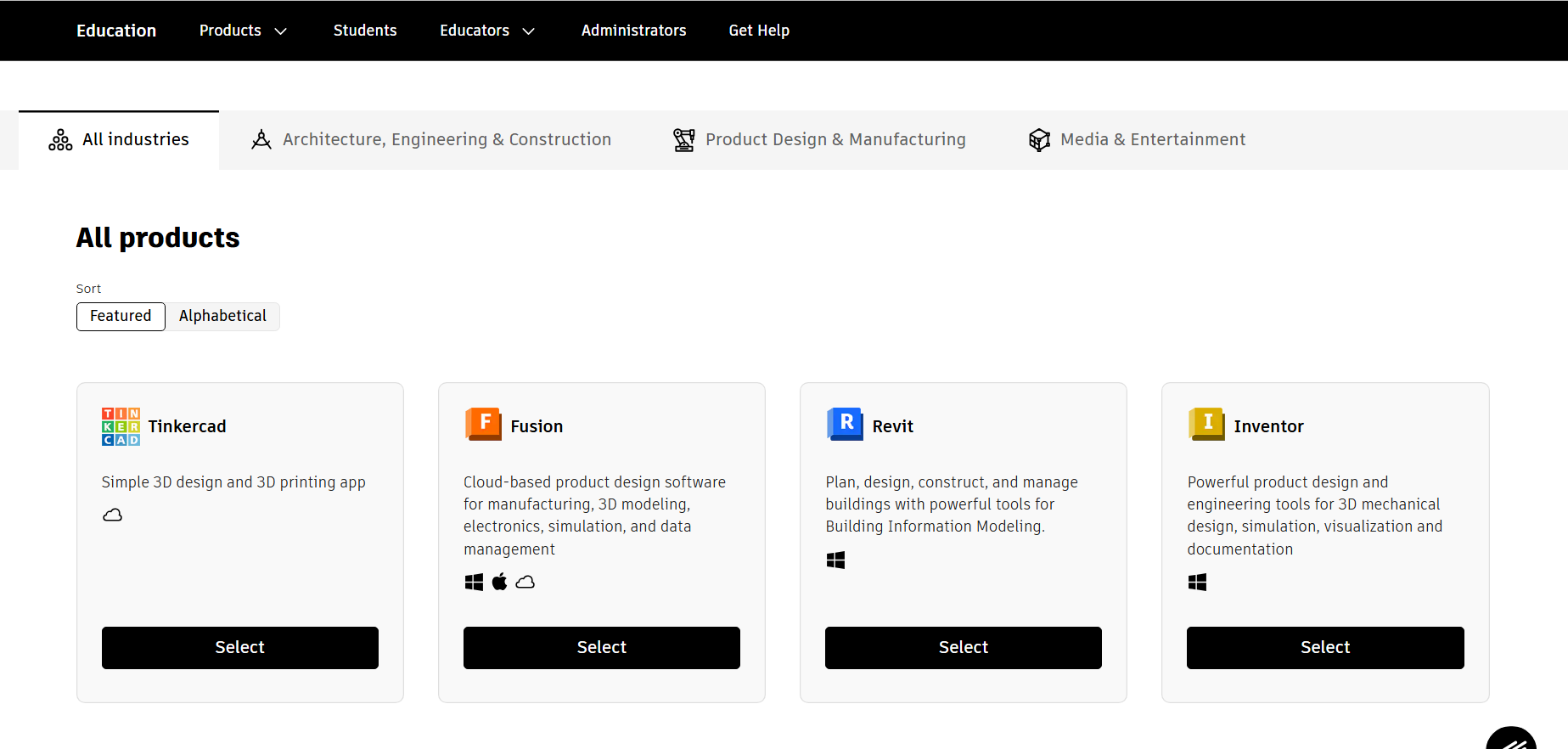
What to do: Open the Autodesk Education portal and select Fusion.
Choose the student option
Select the option intended for students and continue through the education access process.
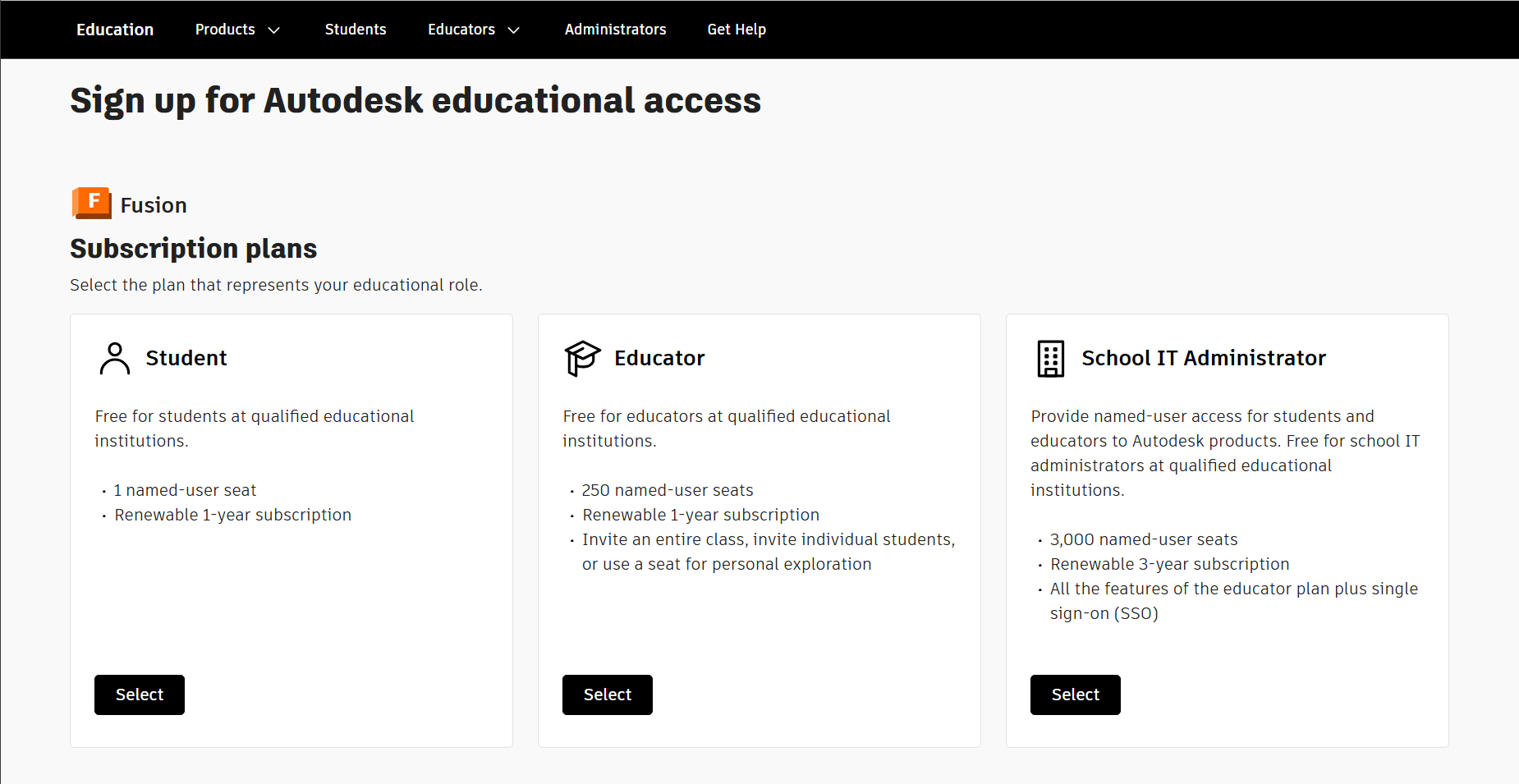
What to do: Select the student or education option shown on the Autodesk website.
Verify your student status
Follow the verification process shown by Autodesk. For verification documents, keep the required college ID if available else if one is not available try with either college fee reciept or offer letter.
What to do: Complete the student verification process shown on the Autodesk website.
Find Fusion 360
After completing the education access process, find Fusion 360 in the available Autodesk software and continue to the download option.
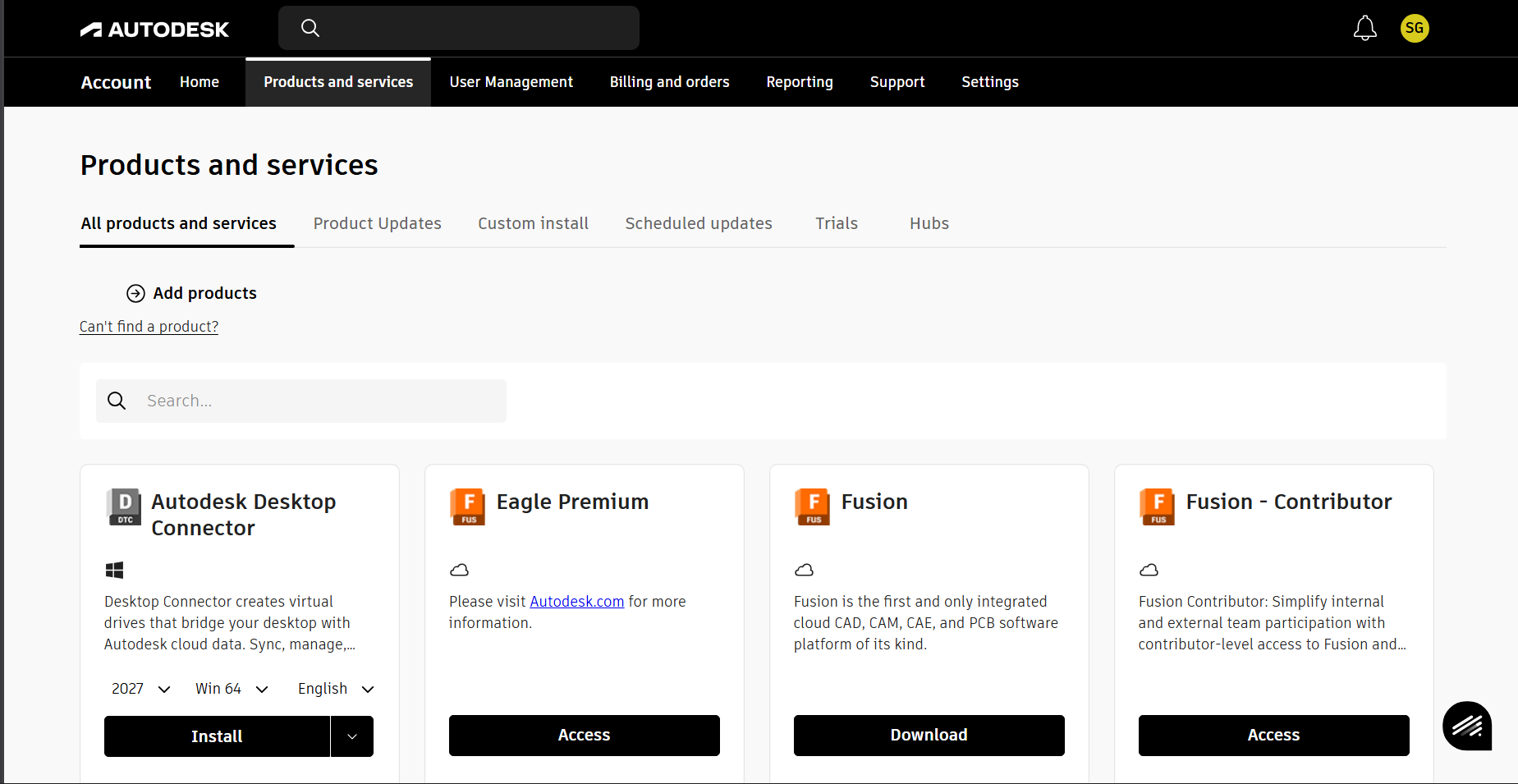
What to do: Locate Fusion 360 and select the appropriate download option for your operating system.
Download and install
Download the installer, run it on your computer, and complete the installation. Once installed, launch Fusion 360 and sign in with your Autodesk account.
What to do: Make sure you have a stable internet connection and free space of around 8GB in your 'C:' drive
Learn Fusion 360
Once Fusion 360 is installed, these tutorials are a good starting point for learning the basics of CAD and getting comfortable with the Fusion 360 interface.
Guide maintained by ATOM Robotics Lab.